
Web Accessibility Is a UX and Revenue Problem, Not Just a Legal One
Almost every website fails basic accessibility. The defects that lock out disabled users are the same ones costing you conversions and search visibility, and for B2B suppliers they're now a question in the bid. Here's the data, and what to do.
Accessibility usually gets filed under compliance, somewhere between legal and "we'll get to it." That's a mistake. The defects that lock out a screen-reader user are mostly the same ones that cost you conversions, frustrate mobile users and bury pages in search. And if you sell to government, or to companies that do, accessibility is now a question in the bid. Fixing it is some of the most useful work a B2B site can do, and it has very little to do with charity.
Almost every website is failing, including yours
Every February, WebAIM runs an automated accessibility scan of the top one million home pages. The 2026 results are blunt: 95.9 percent had detectable WCAG failures, up from 94.8 percent the year before (WebAIM, 2026). The average page carried 56.1 distinct errors. And because automated tools only catch part of the picture, the true pass rate is lower than the 4.1 percent that came through clean.
Line up a hundred sites at random and about ninety-six fail the baseline standard for whether people with disabilities can use them. Unless someone has tested yours, it's safest to assume it's one of them. That's not a comfortable thought, but at least you're in large company.
The failures are mundane, and that is exactly why they matter
You might picture accessibility problems as exotic edge cases, but almost all of the errors fall into six ordinary categories (WebAIM, 2026):
- Low-contrast text: 83.9 percent of pages.
- Missing alternative text for images: 53.1 percent.
- Missing form input labels: 51 percent.
- Empty links: 46.3 percent.
- Empty buttons: 30.6 percent.
- Missing document language: 13.5 percent.
Six ordinary defects cause almost all failures
Ninety-six percent of all detected errors sit in those six buckets. Now read the list again with conversions in mind instead of compliance. Low-contrast text is unreadable on a phone in daylight for everyone, whatever their eyesight. A missing form label is the difference between a quote form that autofills cleanly and one that fights the user. An empty link is invisible to a screen reader and to a search crawler alike. Missing alt text hides your product images from assistive tech and from image search at the same time.
None of these are accommodations bolted on for a small minority. They're the basics that decide whether a typical visitor can read, find their way around and buy. Curb cuts were built for wheelchairs, and everyone with a stroller, a suitcase or a delivery cart uses them. Accessible design works the same way, because when you design for the edges, the middle gets covered too.
The legal exposure is real
If the usability case doesn't move the room, the legal one might. UsableNet's 2025 year-end report (vendor research from a company that sells accessibility services) reviewed more than 5,000 ADA-related digital accessibility lawsuits filed in US federal and state courts that year (UsableNet, 2025). Its midyear report found ecommerce was the most targeted sector, at 69 percent of suits in the first half of 2025, and that 36 percent of the companies sued had more than $25 million in annual revenue (UsableNet, 2025 midyear report). A manufacturer with a B2B catalog is a less common target than a consumer store, but it isn't exempt.
The six failure types above are the ones that are easiest to find from the outside, which is why they keep showing up in demand letters.
For B2B suppliers, accessibility is now a procurement question
This is the part most manufacturers and B2B service firms miss. If any of your revenue comes from public-sector buyers, or from large customers who sell to them, accessibility goes beyond who can use your site. It's something buyers are told to check.
- US federal buyers. Section 508 of the Rehabilitation Act covers the information and communication technology (ICT) federal agencies buy and use. The government's own guidance tells vendors to produce an Accessibility Conformance Report (ACR) for any ICT they intend to market to federal agencies, to use it to answer the accessibility requirements in a solicitation, and to make it easy to find on their website, for example linked from the product page (Section508.gov).
- The VPAT is how you build that report. The Voluntary Product Accessibility Template from the Information Technology Industry Council is a free template that turns the standards into test criteria. Fill it in after testing and the result is your ACR. It comes in four editions: 508, EU (based on EN 301 549), WCAG, and INT, which combines all three. The current version is VPAT 2.5Rev, from April 2025 (ITI).
- State and local government. The Department of Justice rule under ADA Title II sets WCAG 2.1 Level AA as the standard for state and local government websites and apps, and it covers content those governments provide through contractors and vendors. An interim final rule on April 20, 2026 pushed the compliance dates to April 26, 2027 for entities serving 50,000 people or more, and April 26, 2028 for smaller ones (ADA.gov). Use the extra year to prepare, because the requirement itself is still coming.
- European public buyers. The EU procurement directive says technical specifications for anything people will use should take accessibility criteria into account, except in duly justified cases (Directive 2014/24/EU, Article 42). EN 301 549 is the standard those buyers use for ICT. Separately, the European Accessibility Act has applied since June 28, 2025 to a listed set of consumer products and services, including ecommerce sold to consumers (Directive (EU) 2019/882). Most manufacturer-to-manufacturer sales sit outside that list, so check scope before assuming either way.
In practice, your marketing site is rarely the thing being bought. But a customer portal, an online ordering system, a product configurator, embedded software, or digital documentation you deliver with the product can all count as ICT in a public contract. And your website is the first piece of evidence a buyer sees. A procurement reviewer who finds unlabeled form fields on your quote request page won't assume your portal is any better.
Keep in mind that an ACR is a statement of what you tested, and buyers read it that way. Claiming full conformance you haven't tested is worse than reporting "partially supports" with notes, because the buyer can check, and some will.
How to treat accessibility like the UX work it is
Build it in, do not bolt it on
Accessibility retrofitted at the end is expensive and brittle. Build it into design and development from the first wireframe: contrast baked into the color system, labels built into the component library, alt text as a required field in the CMS. It's far cheaper as a default than as a cleanup. Our docs guides on color contrast and keeping a site accessible over time cover the everyday checks.
How to do it
- Define accessible color pairs in your design tokens first: run every text-on-background and UI-border combination through the WebAIM Contrast Checker and only admit pairs that clear 4.5:1 (3:1 for large text and interface components) into the system.
- Build shared components against a named ARIA Authoring Practices Guide pattern, so keyboard behavior, focus states, roles, and accessible labels ship inside the button, menu, accordion, or dialog rather than getting patched on later.
- Make alt text a required field on every CMS image and media block, and link the alt decision tree inline so authors know when to describe an image and when to mark it decorative with empty alt.
- Add contrast, visible focus, and label checks to your design and PR review gate, so nothing merges without them.
See a worked example
A team that pre-checks every text-and-background pair in its Figma color tokens to at least 4.5:1, ships buttons and menus from a component library with roles and labels already wired in, and makes alt text a required field on its CMS image block will often pass automated contrast and missing-alt checks on the first audit, instead of reopening dozens of tickets weeks after launch. The same fixes done in the design system typically cost a fraction of what they cost as post-launch retrofits.
Tools to use
Steal our AI prompt
You are an accessibility-minded design systems reviewer. Here is [paste: your list of color tokens with hex values, your core component list, and your CMS image and media field schema]. First, flag any text-on-background or UI-border color pair that likely falls below WCAG 2.1 AA contrast (4.5:1 normal text, 3:1 large text and interface components) and tell me which to fix, but note I must confirm each in the WebAIM Contrast Checker rather than trust your estimate. Second, for each component in [describe: for example button, dropdown menu, accordion, modal], name the matching ARIA Authoring Practices Guide pattern and list the roles, states, focus behavior, and accessible label it must expose. Third, review my CMS schema and tell me exactly where to add a required alt-text field and any decorative-image toggle, referencing the W3C alt decision tree logic. Do not invent WCAG numbers, tool names, or URLs; if you are unsure, say so.
Fix the six first
You don't need a year-long program to make real progress. Those six categories account for the overwhelming majority of errors. Audit for them, fix them once across your shared templates and components, and you clear the most common errors, and much of the daily friction, in a single focused pass. It won't catch everything a demand letter can cite, since scanners miss problems only a person finds, so treat it as the first of several passes.
How to do it
- Scan a few representative templates (home, a form page, an article) with WAVE or the free axe DevTools extension and tally which of the six error types appear and where they originate.
- Trace each error back to its shared source instead of the page: a color token for contrast, the header or footer partial for empty links, the button and form-field components for empty buttons and missing labels, the root layout for the missing lang attribute.
- Fix at the source: raise the failing token in the WebAIM Contrast Checker until it passes AA, give inputs real labels and icon-only controls an aria-label, and set
<html lang="en">in the base layout. - Re-scan the same templates to confirm the counts drop, then spot-check one page with a screen reader (VoiceOver or NVDA) to make sure the labels read sensibly.
See a worked example
A team runs a scanner on their homepage and finds about 40 low-contrast errors, nearly all traced to one muted-gray body token (#999 on white, roughly a 2.8:1 ratio that fails AA). Darkening that single token to about #595959 (~7:1) likely clears most of them in one change, and adding an aria-label to the shared icon-only "search" button can retire every empty-button instance site-wide at once.
Tools to use
the WAVE evaluation tool, the WebAIM Contrast Checker, and the WebAIM Million report on why these six dominate.
Steal our AI prompt
I'm fixing accessibility errors across a component-based website and want to fix them once at the shared-template level, not page by page. Here is a scanner report (WAVE or axe) and the relevant component and template code: [paste report plus code for the button, link, form-field, header/footer, and root layout components, plus my color tokens]. For each of the six most common WCAG failures (low-contrast text, missing alt text, missing form input labels, empty links, empty buttons, missing document language), tell me the single shared file or token where I should fix it, give me the exact code change (including a darker AA-passing hex where a color fails contrast, an aria-label for any icon-only control, a real label element for each input, and the html lang attribute), and flag any error that is genuinely page-specific and cannot be fixed at the template level.
Test with real assistive technology and real people
Automated scanners catch only part of the problem, which is why WebAIM says real conformance is "certainly lower" than the 4.1 percent that passed its scan. Put a keyboard-only user and a screen reader through your key flows, especially the quote request, the spec sheet download, and any configurator or ordering flow. Recruit testers who differ from your ideal buyer in ability, age, device, and comfort with technology, and give them all the same tasks so the results compare. Watching someone get stuck where your mouse never had trouble will show you more than any report.
How to do it
- Unplug the mouse and Tab through the entire quote request or RFQ form, including any file upload for drawings; confirm every field, button, and error message is reachable, shows a visible focus ring, and never traps focus.
- Run the same flows with a real screen reader (NVDA on Windows, VoiceOver on Mac) and your monitor off; check that labels read correctly and that focus jumps to validation errors when they appear.
- Recruit one or two people who use assistive technology daily and have them attempt a real quote request or spec download while thinking aloud.
- Log every blocker with its flow, step, the assistive technology used, and expected versus actual behavior, then fix and re-test.
See a worked example
Take a typical RFQ form. An automated scan comes back clean, yet a keyboard-only pass finds that the "Attach drawing" button can't be reached with Tab, and the "file too large" error never receives focus, so a screen reader user is never told the upload failed. The form looks fine and loses the request without anyone noticing. Blocking issues like these are the ones scanners tend to miss.
Tools to use
Steal our AI prompt
I am manually testing my [describe flow, for example RFQ form or product configurator] for accessibility using a keyboard and a screen reader. Here is the page markup and the click-by-click steps a user takes: [paste HTML and the flow]. Acting as an accessibility QA reviewer, give me a keyboard-only test script (the exact Tab, Shift+Tab, Enter, Space, arrow, and Esc sequence) and a screen-reader test script for both NVDA and VoiceOver that walks the whole flow. For each step, tell me what a correct experience should announce or where focus should move, and what would signal a likely WCAG failure such as an unreachable control, a missing or wrong label, focus not moving to an error message, or a keyboard trap. Do not assume anything that is not in what I pasted, and flag any step where I need to confirm behavior on real assistive technology.
Treat it as ongoing, not a one-time badge
Every new template, campaign page, and third-party embed can reintroduce failures. Like performance or brand consistency, accessibility is a standard you keep up every time the site changes.
How to do it
- Add axe-core to your test suite (via Playwright or jest-axe) so every pull request scans your key templates and fails the build on new violations.
- Put Pa11y CI or Lighthouse CI in your pipeline with an accessibility score budget, so campaign pages and template edits can't merge below your threshold.
- Keep a living list of third-party embeds (chat, forms, video, maps) and re-test each one after vendor updates, since they sit outside your codebase and your automated checks.
- Schedule a recurring keyboard-and-screen-reader spot check each release or quarter, and assign a named owner plus an escalation path.
See a worked example
A B2B team ships a relaunch with a clean audit, then a few weeks later a new webinar landing page, cloned from a duplicated template, goes live with an unlabeled email field and a chat widget embed whose text sits at roughly 2:1 contrast. An automated check wired into the deploy would likely have caught both before launch, instead of a prospect surfacing them in a support email later.
Tools to use
Steal our AI prompt
I want to make web accessibility an ongoing standard on my team, not a one-time audit. Our stack is [describe stack, for example Next.js on Vercel with CI on GitHub Actions] and our current release process is [describe how pages and campaigns ship]. Here is a list of our reusable templates, campaign page types, and third-party embeds: [paste]. Draft a lightweight accessibility maintenance plan that (1) says exactly where to add automated checks (axe-core in our test suite, plus Pa11y CI or Lighthouse CI in the pipeline) with a suggested pass or fail threshold, (2) defines a recurring manual review cadence with a named owner and an escalation path, and (3) lists which third-party embeds need re-testing after vendor updates. Map each item to who does it and when. Do not invent tools or statistics.
Write and lay out for everyone
Accessibility isn't only markup. Dense copy, jargon, and layouts that break when someone zooms in shut out far more people than screen-reader users: buyers reading in a second language, engineers on a phone on the shop floor, anyone tired at the end of a long day. Plain words and a layout that holds at high zoom help all of them.
How to do it
- Rewrite your key pages in plain language: short sentences, one idea per paragraph, headings that say what the section answers. Keep the technical terms your buyers use, and cut the ones only your org chart uses.
- Zoom your browser to 400 percent, or narrow it to 320 pixels wide, and check that every page still reads in one column with no sideways scrolling. That's the WCAG 2.2 Reflow criterion, Level AA.
- Check images, symbols, and examples for anything that only makes sense in one culture or one region, especially if you sell internationally.
- Read the final copy aloud once. Sentences that are hard to say are hard to read.
See a worked example
"Leverage our vertically integrated capabilities to optimize total cost of ownership" becomes "We machine, finish, and assemble in one plant, so you deal with one supplier and one lead time." Same claim, readable by a buyer, an engineer, and a translation tool alike.
Tools to use
W3C WAI: Writing for Web Accessibility, the WCAG 2.2 Reflow criterion explained, the Hemingway Editor to flag dense sentences, and the US Federal Plain Language Guidelines.
Be ready for the procurement question
If public-sector work is part of your pipeline, or could be, decide now how you'll answer "show us your accessibility conformance" instead of scrambling when a bid asks.
How to do it
- Ask your top customers' procurement teams, or read their supplier portals, to find out whether accessibility is part of how they evaluate vendors.
- List every digital thing you deliver with the product: customer portal, ordering system, configurator, embedded software, PDF manuals. Those are the items a public buyer may treat as ICT.
- For each one in scope, test it and complete the right VPAT edition (508 for US federal, EU for European buyers, INT if you sell to both). Record "partially supports" honestly, with notes.
- Publish a short accessibility statement on your site that says what standard you aim for, what you know isn't there yet, and who to contact. Link your ACRs from it and from the relevant product pages.
See a worked example
A components manufacturer bidding on a state transportation contract is asked whether its online parts-ordering portal meets WCAG 2.1 AA. With a tested ACR already linked from the portal page, the answer is a link and a sentence. Without one, it's a scramble, a vague "we believe so," and a reviewer who marks the line as a risk.
The same work, counted three times
When you improve contrast, label your forms, describe your images, write in plain words and make every control reachable by keyboard, you're doing the usability work that makes the site clearer for every buyer. It's also the autism-friendly design that reduces overwhelm for a wider audience than you'd guess. None of it needs to be a separate accessibility project off to the side.
The accessibility win, the conversion win, and the SEO win are frequently the same edit, counted three times.
For a B2B supplier there is a fourth count: the procurement reviewer. The same pages they check are the ones we cover in what manufacturing buyers check on your website. If you're planning a rebuild, put WCAG 2.2 AA and a VPAT-ready test plan in the brief from day one. Our website redesign RFP guide shows where those lines go.
Keep reading
 UX & Web Design
The Checkout Is Where Your Ecommerce Revenue Leaks Out
Seven in ten carts never convert, and most of that loss is self-inflicted at checkout. Here's what the data says is leaking, the fixes that earn the order back, and what changes when your buyers are distributors placing reorders instead of first-time shoppers.
 UX & Web Design
How to Create an Autism-Friendly Website: 5 Mistakes to Avoid and How to Test
An autism-friendly website is calm, predictable, and literal. That also describes a site a busy B2B buyer can use in two minutes. Here are five common mistakes, how to fix them, and how to test your site.
 UX & Web Design
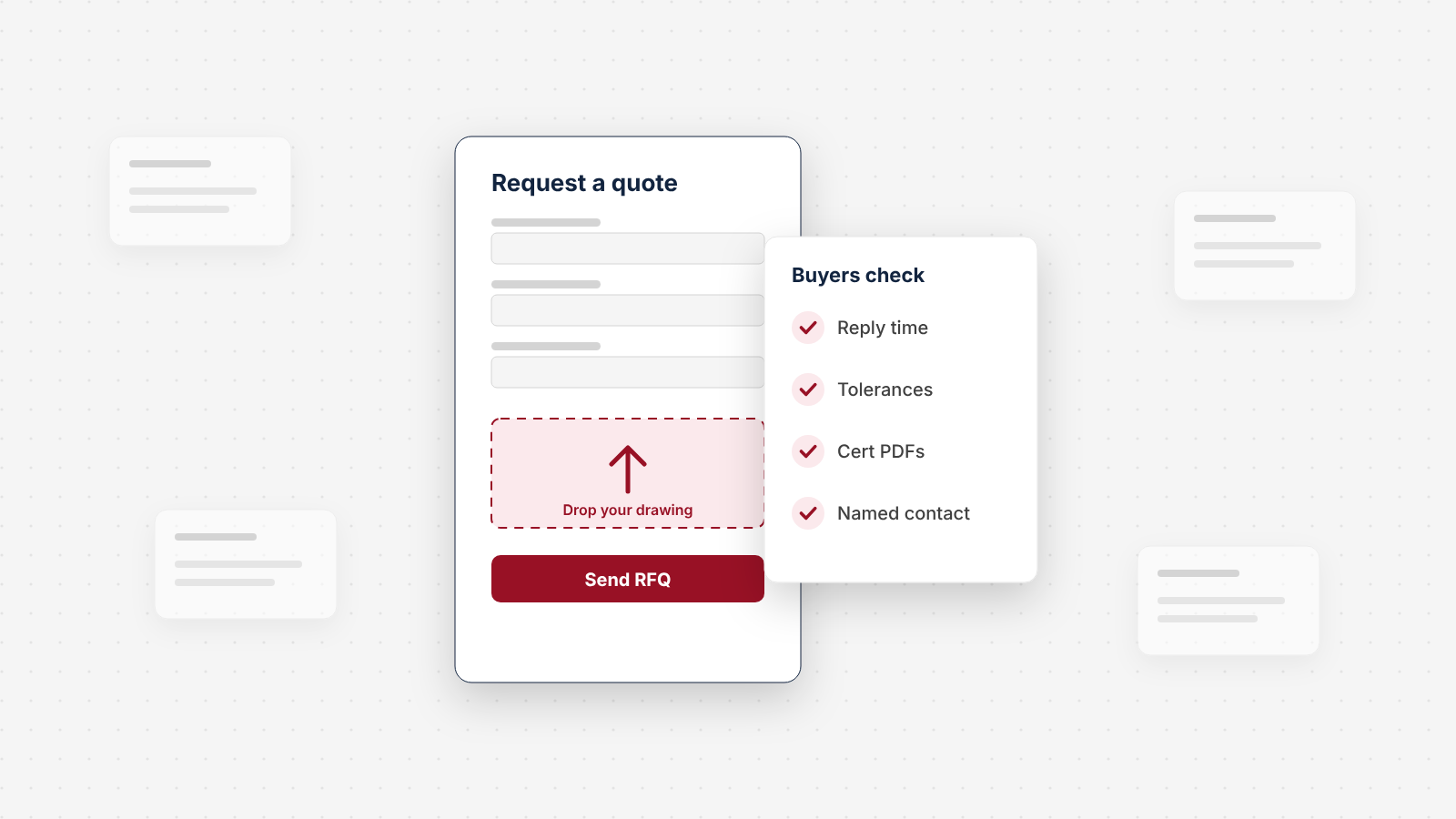
We Audited the Quote Request Path on 150 Manufacturer Websites
We checked how 150 US manufacturers handle the moment a buyer wants a quote: the form, the file upload, the reply promise, the specs and proof around it, and the email behind it. About half have a dedicated quote form. Only 7% say when they'll reply. Here's what we found, sector by sector, and a 10-point check for your own site.
Ready to talk about your site?
Book a call with Chykalophia. We focus on your business, your goals and what is in the way, and tell you fast if we are a fit.
Strategies for businesses building what's next.
Occasional notes on turning B2B websites into pipeline. Unsubscribe any time.

